Showing posts with label window xp. Show all posts

Sunday, 24 January 2016

Registry keys secrets

The registry is not a single self contained file, but an extensive Database, which works mainly with 7 files. These files be evaluated at each start of Windows XP and are aboutregistry then Windows, and all working on the computer programs.

Registry keys secrets

Here below are the some important windows XP registry keys secrets and their functions also you can know about registry keys  and about their uses as well in detail.

HKEY_CLASSES_ROOT

In the upper section all file extensions for known file types are stored. If you have, For example, Microsoft Word installed on your computer, find here theEntry. Doc for Word documents.
In the right window you will see the entry standard of the value as the name for registered file type contains. Designation for registered file types appear in part as a key in the bottom. Here the properties of registered files are stored on other and the commands set that you see the context menu for a file type. The corresponding commands you can find in the sub-key shell of a file type.
More File properties that are managed here, ss also the symbol with which the file is displayed in the Explorer Commands that are executed when you double click the file name, So about the start of the linked program. Here you will find a key named CLSID with numerous sub-basins, which are filed by OLE-enabled applications and ActiveX components. These keys are used by Windows XP to drag and drop and OLE for be able to implement certain programs.

Saturday, 28 November 2015

Windows 2012 Server Different GUI Levels

I do have to say after using Windows 2012 server for a while in my lab and to host several Hyper-V machines for research and testing I do have to say I like it. It is a lot less resource intensive that Windows 2008 and Windows 2008 R2 are, the use of WinRM for Remote Management and the Server Manager interface makes administrating several servers a breeze, the best part of all is that I can administer the server completely with Windows PowerShell and for those cases that I need the GUI I can install and remove it to save a couple of MB of memory and reduce the attack surface of the box. 

The main reason that the GUI can be modified is that the components for it are now features of the OS:
  • Graphical Management Tools and Infrastructure (Server-Gui-Mgmt-Infra):  provides a minimal server interface and server management tools. The components for it are:
    • Server Manager
    • Microsoft Management Console (MMC) and snap-ins
    • Subset of Control Panel
  • Server Graphical Shell (Server-Gui-Shell): it  is dependent on the first feature and provides the rest of the GUI experience. The component of it are:
    • Desktop
    • Start screen
    • Windows Explorer
    • Internet Explorer
In he blog post I will cover how to use PowerShell for adding and removing of the features since PowerShell is available in server core with none of the components installed.
Here is Windows 2012 Server Core default install after logging on as administrator:
default_desktop
The terminal it provides is cmd.exe so to get to Windows PowerShell we need to type powershell and press enter.  In PowerShell we can use the Windows Feature functions to add and remove features. To list them we can use the Get-Command cmdlet:
PS C:\Users\Administrator> Get-Command *windowsfeature* -Type function,cmdlet

CommandType     Name                                               ModuleName
-----------     ----                                               ----------
Function        Get-WindowsFeature                                 ServerManager
Function        Install-WindowsFeature                             ServerManager
Function        Uninstall-WindowsFeature                           ServerManager
We find that we can get the Windows Features currently installed on the system, we can Install and Uninstall Windows Features also. to get a list of the options and examples of use for each we can use Get-Help cmdlet with the –Full paramter:
Get-Help Install-WindowsFeature -Full
Lets start by installing only the Graphical Management Tools and Infrastructure (Server-Gui-Mgmt-Infra), this will give us the tools for only managing the server but not for browsing the web or doing some activities that might cause the server to fall for a client side attack.  To install we just use the Install-WindowsFeaturefunction and give it the parameter to restart the server after it is installed:
Install-WindowsFeature Server-Gui-Mgmt-Infra –Restart
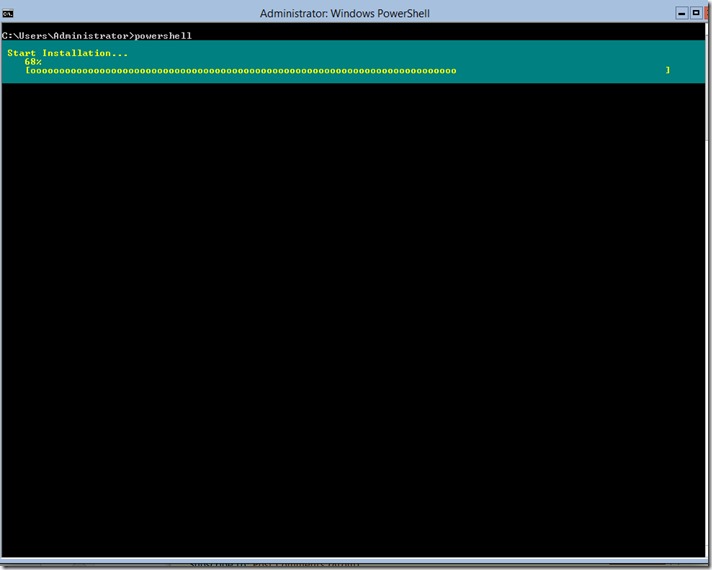
Once it is ran PowerShell will show the progress of the installation:
mgmt-infra-install
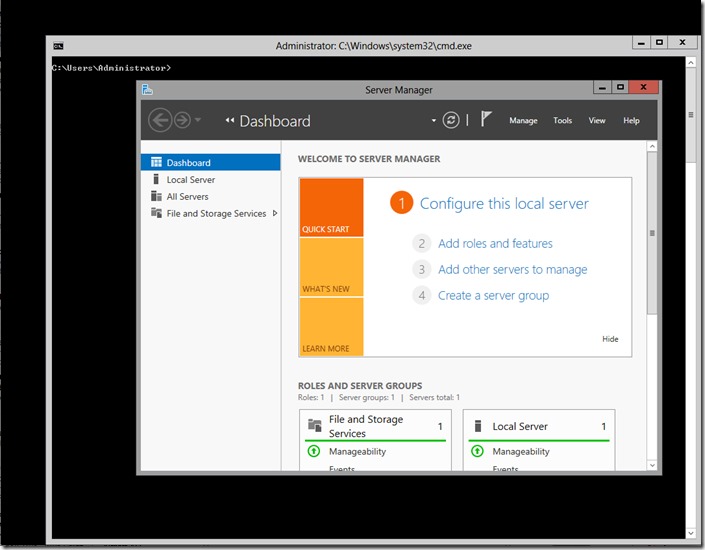
Once the server starts and one logs on we can see that. Once the server reboots and one logs one Server Manager will come up automatically and can be used for management tasks.
mgmt-infra-install2
If we want the full desktop experience and the addition of Internet Explorer we just need to run the following command to add that component:
Install-WindowsFeature Server-Gui-Shell –Restart
One shortcut to install all if you are in Core enumerate the features with the word GUI and since PowerShell is an Object Based shell we can pass the objects it returns to the Install-WindowsFeture function to install those:
Get-WindowsFeature *gui* | Install-WindowsFeature -Restart
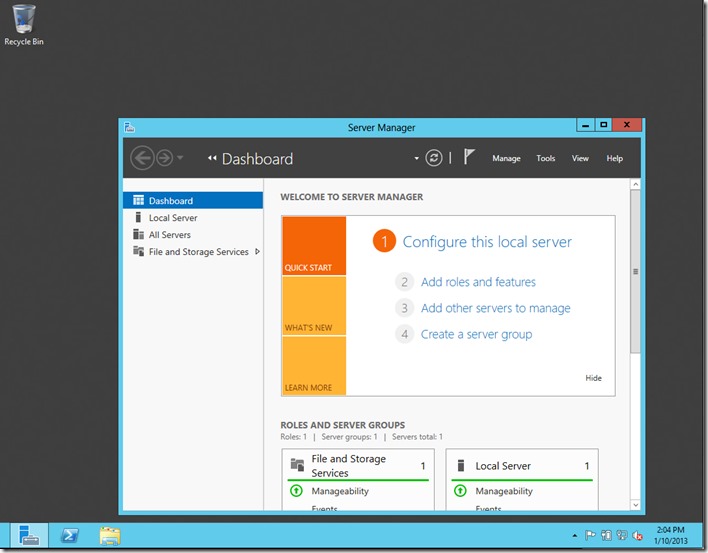
Once the server reboots and the user logs in they should have a full GUI experience:
server-gui-shell
One thing to take in to account on this system with no GUI as a Core only server default install memory use was around 322MB of memory, with the Infrastructure Management Tool support only it was around436MB of memory and with the full GUI Experience it was around 527MB of memory. I would recommend only having Server-Gui-Mgmt-Infra installed as a mid point of usability and reduces attack surface on the server.
I hope you found the information on the blog post useful.

Tuesday, 23 June 2015

The Best Computer Tips and Tricks: Windows XP

Control Inactive System Tray Icons

You don't have to hide or show all the icons in your system tray—you can control their disappearing acts. Right-click on the taskbar and select Properties. Click on the checkbox next to "Hide inactive icons" (if it's not checked by default), then click on the Customize button. For each item on this list, you can choose "Hide when inactive," "Always hide," or "Always show" options to decide what you'll see and when.

Fit More Icons on Your Desktop

If your screen is so cluttered with Word documents and program shortcuts that you can't see the rolling meadows of your wallpaper, you don't need to move piles of stuff to the Recycling Bin. Just change the amount of space between icons. Right-click on the desktop, select Properties, then click on the Appearance tab, and click the Advanced button. In the "Item" drop-down, scroll down to Icon Spacing (Horizontal) and Icon Spacing (Vertical); changing the value in the "Size" field will move icons closer together (while increasing the number will move them farther apart). When you're done, click OK. To make your existing icons follow these rules, right-click on the desktop, select "Arrange Icons By" and then click Align to Grid, then go back to the same menu and click "Auto Arrange."

Shut Down from Your Desktop

If you're trying to eliminate every extraneous mouse click, you can shut down your computer with an icon on the desktop. Right-click on your desktop, click "New," and then click "Shortcut." In the "Type the location of the item" field, type "shutdown -s -t 00" to give you a way to shut down the computer immediately. (Change the -s to -r to create a reboot shortcut instead.)

Change What Programs Start When Windows Does

You can prevent a lot of apps forcing Windows into chilled-molasses boot times—without uninstalling anything. Click Start, then "Run...," and type msconfig. This brings up the System Configuration Utility window. Click on the Startup tab to see a list of all the apps slated to start when you boot up Windows. Click the check mark next to any you don't want, and then click OK to save your choices.

Type With an Onscreen Keyboard

Whether you have trouble with your hands or you just prefer using the mouse, typing with Windows' onscreen keyboard can be a great convenience. Navigate to Start > All Programs > Accessories > Accessibility, and click "On-Screen Keyboard." Click OK to clear the dialogue box and then start "typing"—you can even change the settings to "press" keys just by hovering your mouse over the letter you want (enable this feature by selecting "Typing Mode" from the Settings menu).

No-wait Screen Savers

Don't want to wait for your screen saver to kick in? Create a shortcut to it just as you would for any other program by hitting Windows key + F to search your computer and click on "All files and folders." Type "*.scr" in the "All or part of the file name" field to find every screen saver file on your computer. In the resulting list, right-click and drag the screen saver you want to your desktop. Whenever you want it to start, just double-click its icon